
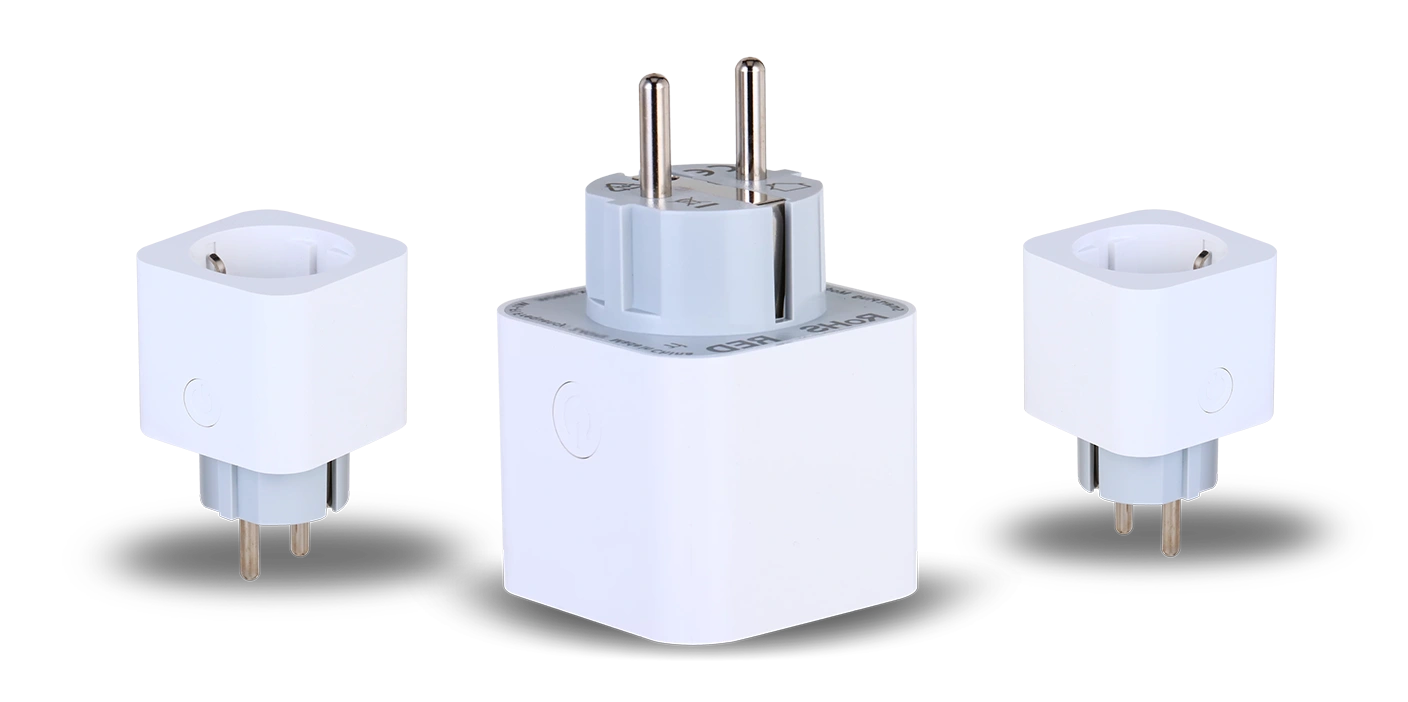
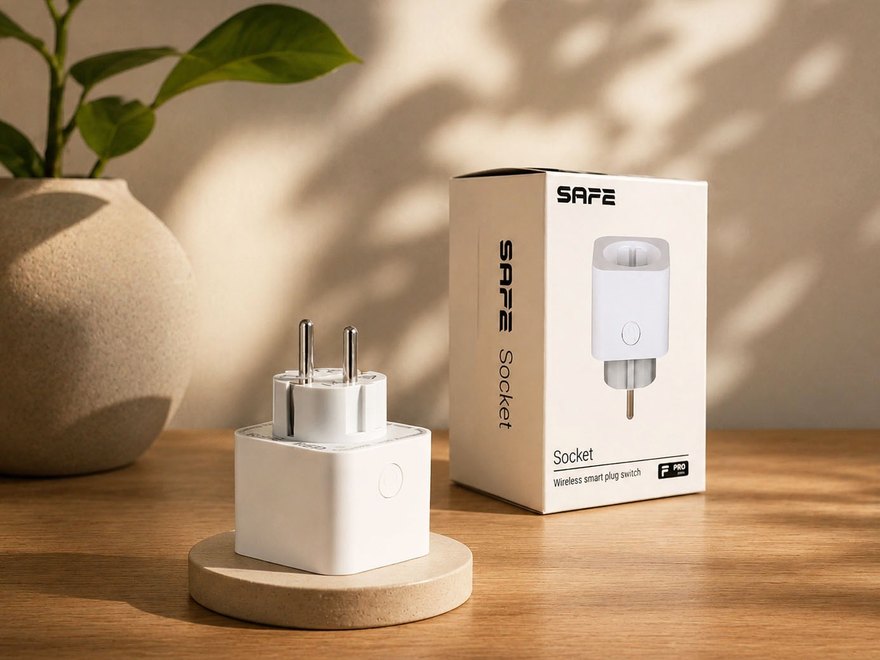
A wireless, remotely controllable smart plug that, through the mobile app, ProSAFE enables easy switching and control of connected electrical devices and appliances, with a choice of bistable or pulse signal. It offers protection against overcurrent, overvoltage, and overheating. It can measure voltage, current, power, or temperature, and generate information related to the energy consumption of connected devices.
Preface
General
This user manual describes the installation, functions, and operation of the wireless smart plug (hereinafter referred to as the “plug”). Before using the device, read this manual carefully and keep it for future reference.
Safety Instructions
The following signal words may appear in the user manual:
| Signal Word | Meaning |
|---|---|
| DANGER | Indicates a high potential hazard that, if not avoided, may result in death or serious injury. |
| WARNING | Indicates a medium or low potential hazard that could cause minor or moderate injury if not avoided. |
| CAUTION | Indicates a potential risk that could lead to property damage, data loss, reduced performance, or an unpredictable outcome. |
| TIP | Provides methods to help you solve a problem or save time. |
| NOTE | Provides additional information, such as emphasis and supplementary text. |
Revision History
| Version | Revision Content | Release Date |
|---|---|---|
| V1.0.0 | First release. | August 2026 |
Privacy Notice
As a device user or data controller, you may collect personal data of others, such as their face, fingerprints, and license plate number. You must comply with local privacy laws and regulations to protect the legitimate rights and interests of other people by implementing measures that include, among others: providing clear and visible identification to inform people of the existence of the monitored area and providing the required contact information.
About the Manual
- The user manual serves as a reference guide only. There may be minor differences between the information provided and the product.
- We are not liable for any damage resulting from using the product in a manner that does not comply with the instructions in the user manual.
- The manual will be updated according to the latest laws and regulations of the relevant jurisdictions. For detailed information, refer to the printed user manual, scan the QR code, or visit our official website. The manual is for reference purposes only. There may be minor differences between the electronic and paper versions.
- All designs and software are subject to change without prior written notice. Due to product updates, certain differences may occur between the product and the information in the manual. Customer service will provide you with the latest version of the software and supplementary documentation.
- There may be printing errors or discrepancies in the description of functions, operations, and technical data. In the event of doubt or dispute, we reserve the right of final explanation. If the manual (in PDF format) cannot be opened, update your reader software or try a different common reader software.
- All trademarks, registered trademarks, and company names in the manual are the property of their respective owners.
- If you encounter any problems while using the device, visit our website or contact your supplier or customer service.
- In the event of ambiguity or dispute, we reserve the right of final explanation.
Important Safeguards and Warnings
This section contains information on the proper handling of the product, risk prevention, and prevention of property damage. Read it carefully before using the device and follow the instructions provided when using it.
Operating Requirements
- Before use, make sure the device's power supply is working properly.
- Do not unplug the device's power cable while it is switched on.
- Use the device only within its rated power range.
- Transport, use, and store the device within the permitted humidity and temperature conditions.
- Prevent liquids from splashing or dripping onto the device. Make sure there are no liquid-filled objects on the device, to prevent liquid from entering it.
- Do not disassemble the device.
Installation Requirements
- Before switching on, connect the device to the power adapter.
- Strictly comply with local electrical safety standards and make sure the voltage in the area is stable and matches the device's power requirements.
- Do not connect the device to more than one power source. Otherwise, the device could be damaged.
- When working at heights, follow all safety procedures and use the required protective equipment.
- Do not expose the device to direct sunlight or heat sources.
- Do not install the device in damp, dusty, or smoky locations.
- Install the device in a well-ventilated location and do not block its ventilation.
- Use the power adapter or power supply provided by the device manufacturer.
- The power supply must meet the ES1 requirements of IEC 62368-1 and must not exceed PS2. The power supply requirements are governed by the device's rating label.
- Connect Class I electrical appliances to a socket with protective earthing.
Functional Elements
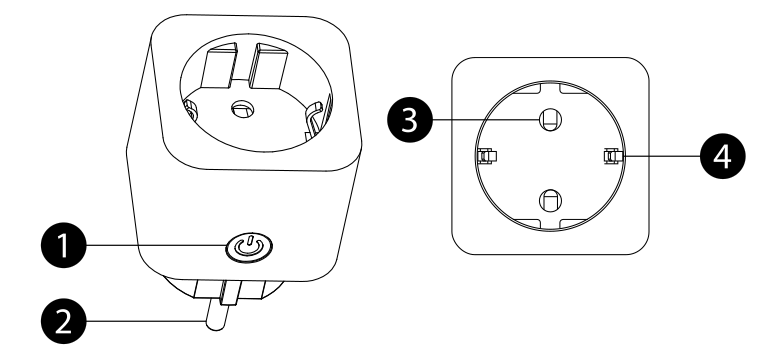
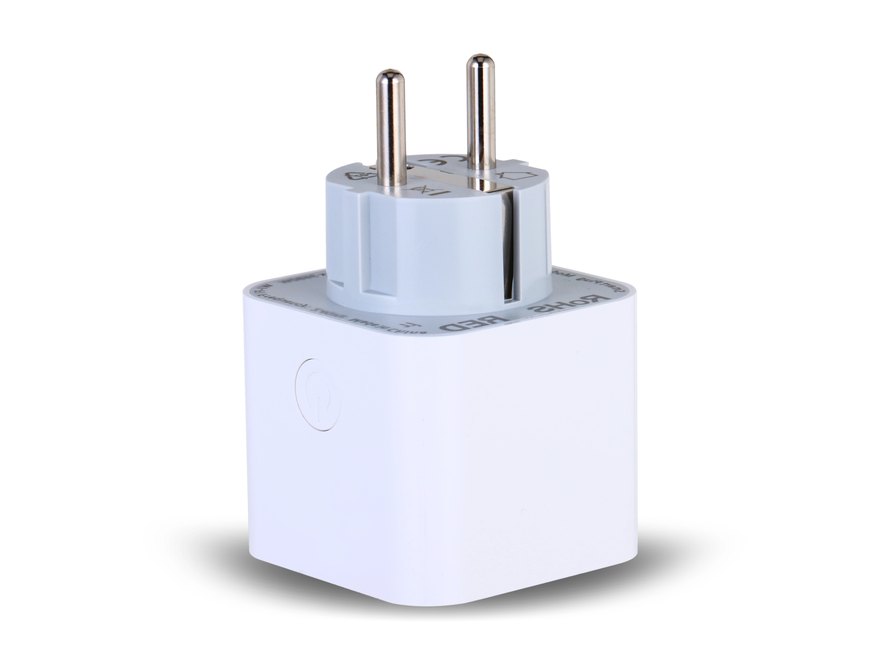
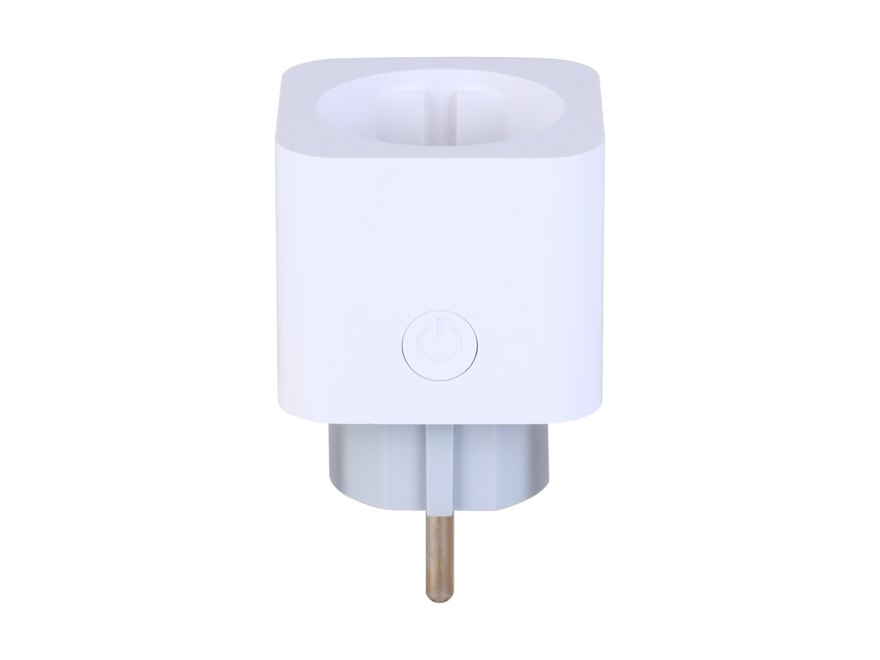
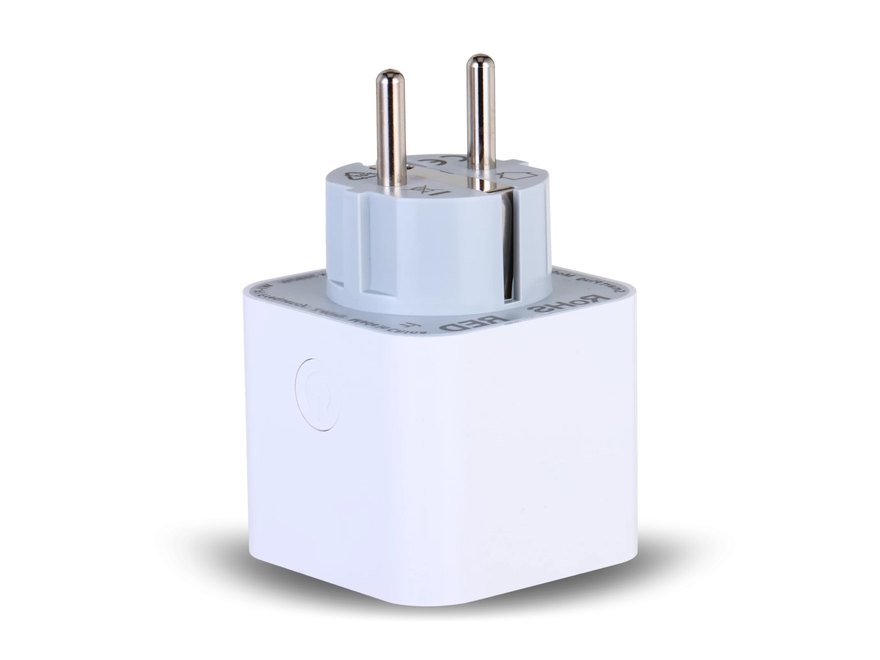
- Power button / LED indicator – manual control of the plug's switching and status indication (see Signaling); a long press binds the device with the hub or resets it to factory settings.
- Plug pins (phase, neutral) – the plug for connecting the Socket to the mains.
- Socket output – sockets for connecting an electrical load (appliance).
- Grounding contact – provides protective grounding for the connected appliance.
Operating Principle
Socket functions as a remotely and manually controlled electronic switch connected between the mains and the connected appliance. The SAFE system controls the plug via the hub and an encrypted SAFE Keeper; the plug also passes measured electrical values and status information to the hub.
Switch control
Socket closes or opens the electrical circuit – it can be controlled directly by pressing the button on the plug, or conveniently remotely via the ProSAFE app (see Socket control). The output contact can be configured in the settings as normally open (NO) or normally closed (NC), and one of two output modes can be selected:
- Bistable – the output state remains as set by the command until the user changes it again.
- Pulse – after the command, the output remains in the selected state only for the set duration (pulse duration), then automatically returns to its default state.
Electrical energy consumption measurement
The plug is equipped with a built-in energy consumption meter. In the ProSAFE app, you can monitor the current input voltage, input current, instantaneous power draw, and consumed electrical energy of the connected appliance; the measured consumption values can be reset in the app at any time.
Protection against overload, overvoltage, and overheating
Socket continuously evaluates the electrical parameters of the circuit and protects the connected appliance as well as itself against overcurrent, overvoltage, and overheating. As soon as an abnormal situation occurs, the plug immediately detects the problem and promptly alerts the user via a notification in the ProSAFE app.
Scenes for automation and control
Socket can be incorporated into the SAFE system's automation scenes and made to respond to events without user intervention – for details, see the chapter Scenes.
SAFE Keeper protocol
Communication with the hub is provided by the encrypted two-way radio protocol SAFE Keeper in the 868 MHz band:
- AES-128 encryption with a rolling code,
- automatic frequency hopping as protection against interference,
- range up to 1 600 m in open space,
- regular connection checks – the system immediately reports a plug outage.
Adding to the System
Before adding the device
- Install the app ProSAFE and log in to your account.
- Make sure you have a compatible hub added in the app (Hub 2 Plus LTE, SAFE 38300) with a stable internet connection.
- The hub must be in the Disarmed state.


How to add Socket
- Plug the Socket into a wall outlet or an extension cord. The electrical load (appliance) can be connected to the device's socket output immediately, or only after binding is complete.
- After connecting to power, the plug automatically enters binding mode – the LED blinks green quickly (high brightness) for 30 seconds. If this window has expired, switch the plug into binding mode by pressing and holding the button for 4 seconds.
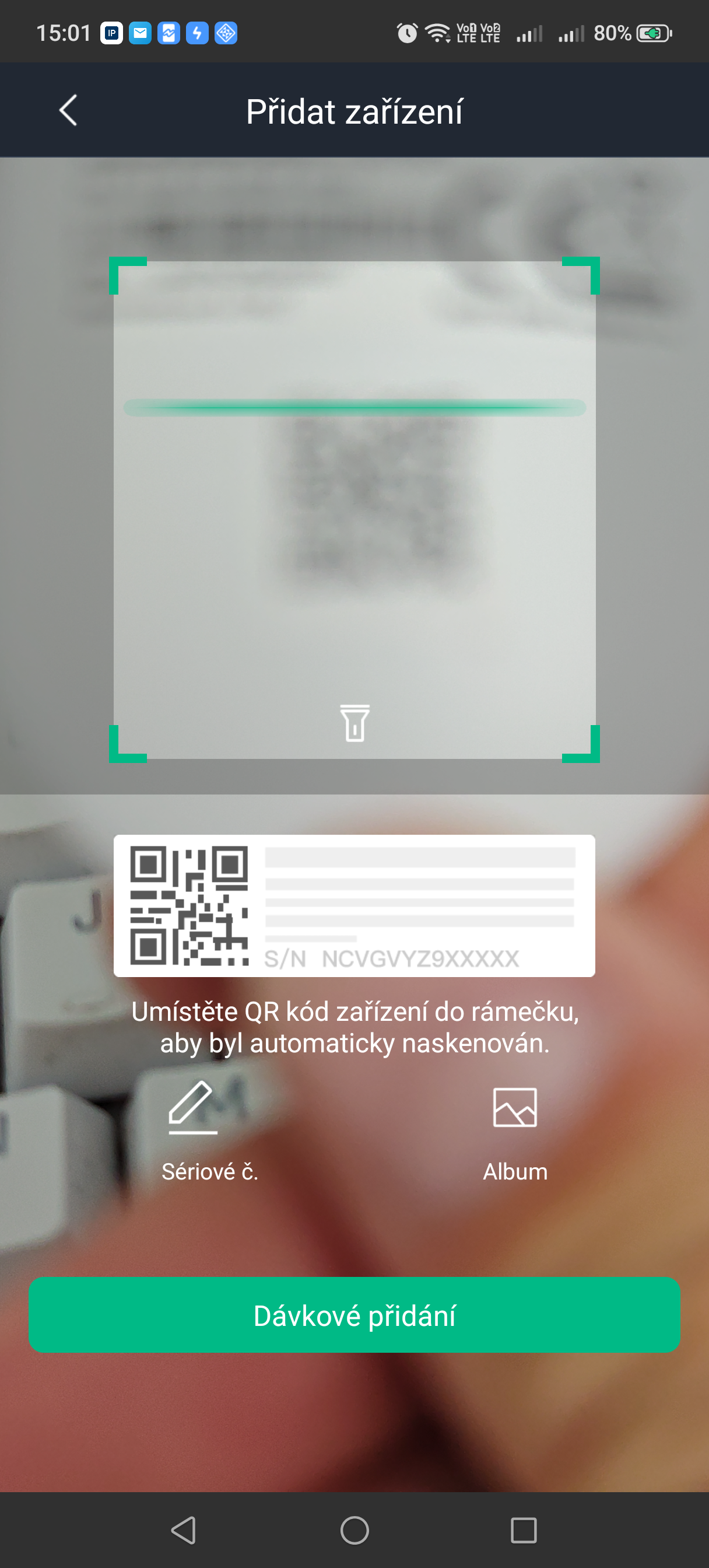
- In the ProSAFE app, open your hub and click Device, then tap + Add device.
- Scan the QR code with the serial number on the plug and follow the on-screen instructions.
- Wait for pairing to complete – successful pairing is confirmed by the LED lighting up for 2 seconds, after which it turns off and the plug opens the circuit (output off).
- Enter a name for the plug, select a zone, and click Done.
Socket control
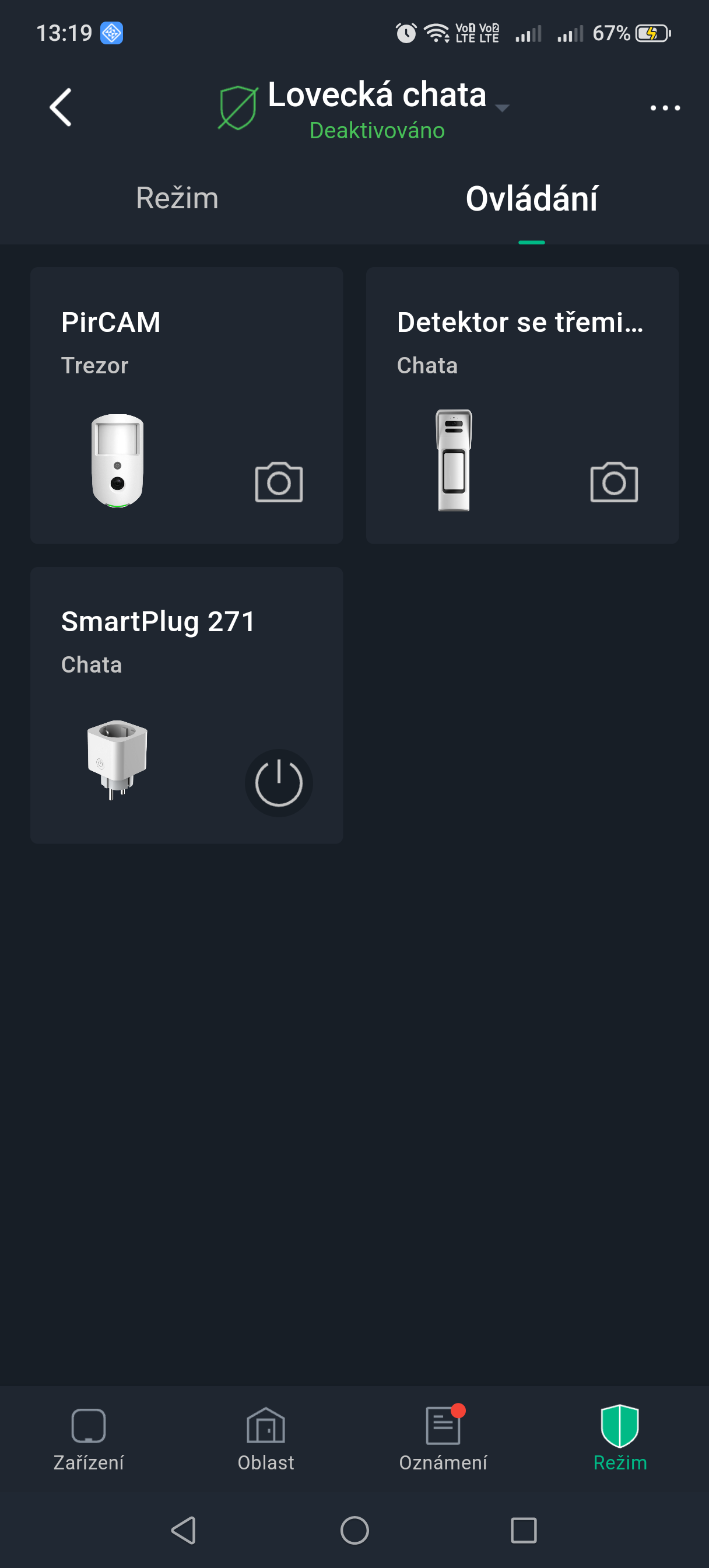
In addition to manual control using the button on the device, Socket can be controlled remotely from the Control tab in the hub overview. Here the plug is displayed among the system's other controlled switches (SmartPlug).
- In the ProSAFE app, open your hub and go to the Control.
- tab. Find the Socket plug in the list of controlled switches.
- Tapping the control turns the plug on or off – depending on the configured output type and mode (see Settings).
The current output state and the measured electrical values can be checked on the device card (see States). The ProSAFE app notifies you of output state changes and any detected abnormal situation (overload, overvoltage, overheating) via a push notification.
States
You can view the current plug status in the ProSAFE app by selecting the device in the device list.
| Parameter | Meaning |
|---|---|
| Online status | Connection between the plug and the hub
|
| Signal strength | Radio signal level: none / low / weak / good / excellent |
| Output status | On (circuit closed) / Off (circuit open) |
| Input voltage | Current voltage at the plug input (V) |
| Input current | Current drawn by the connected appliance (A) |
| Power draw | Instantaneous power of the connected appliance (W) |
| Consumed electrical energy | Cumulative energy consumption (kWh); can be reset in the app |
| Temperature | Current temperature measured by the integrated sensor |
| Temporarily disable | Status of information sending and remote control of the plug – see Settings |
| Transmission via repeater | Whether the plug communicates with the hub via a signal repeater |
| Firmware version | Current firmware version of the plug |
Settings
You can change the settings in the ProSAFE app: select the plug in the device list and click the edit icon.
| Settings | Value |
|---|---|
| Device name | Custom plug name; shown in the device list and in notifications |
| Area (zone) | Assignment of the plug to a system zone |
| Device number | A number used to distinguish the device within the system |
| Temporarily disable | Status of information sending to the hub
|
| Output type | Normally open (NO) / Normally closed (NC) |
| Output mode | Bistable / Pulse (with adjustable pulse duration in seconds) – see Switch control |
| LED indicator | On (default) / off – when off, the LED does not light up regardless of the device's status |
| Scenes | Setting the arm/disarm, alarm, and scheduled scenes – see Scenes |
| Transmission power | High / low / automatic – higher power extends the range and increases consumption |
| Signal strength test | Verification of the radio connection quality at the installation site |
| Cloud update | Remote firmware update |
| Remove device | Deleting the plug from the system (swipe left in the device list, or use the Remove option) |
Scenes
Using scenes, Socket can be incorporated into the SAFE system's automation and made to respond to alarm events or switch according to a predefined schedule, without the user having to control the plug manually. Scenes are configured in the device settings in the ProSAFE app (the Scenes).
| Scene type | Description |
|---|---|
| Arm/disarm scene | The plug automatically switches on or off according to the arming or disarming state of the hub or the selected zone. |
| Alarm scene | The plug responds by switching on or off in reaction to a selected alarm event – for example, disconnecting a hazardous appliance, or switching on lighting to complement siren signaling. |
| Scheduled scene | The plug switches on or off at a predefined time according to the set schedule. |
Signaling
| LED indication | Event |
|---|---|
| Fast green blinking (high brightness) for 30 s | The plug automatically entered binding mode after being switched on |
| Lights up green for 2 s, then turns off | Successful pairing with the hub |
| 3× blinks and turns off | Pairing failed |
| Fast green blinking (low brightness) | Reduced transmission power mode active |
| Slow green blinking (low brightness) | Signal strength test in progress |
| Continuously lit green (high brightness) | The plug is switched on (circuit closed) |
| Off | The circuit is open, or the LED indicator is turned off in the settings, or the plug has no power |
Installation
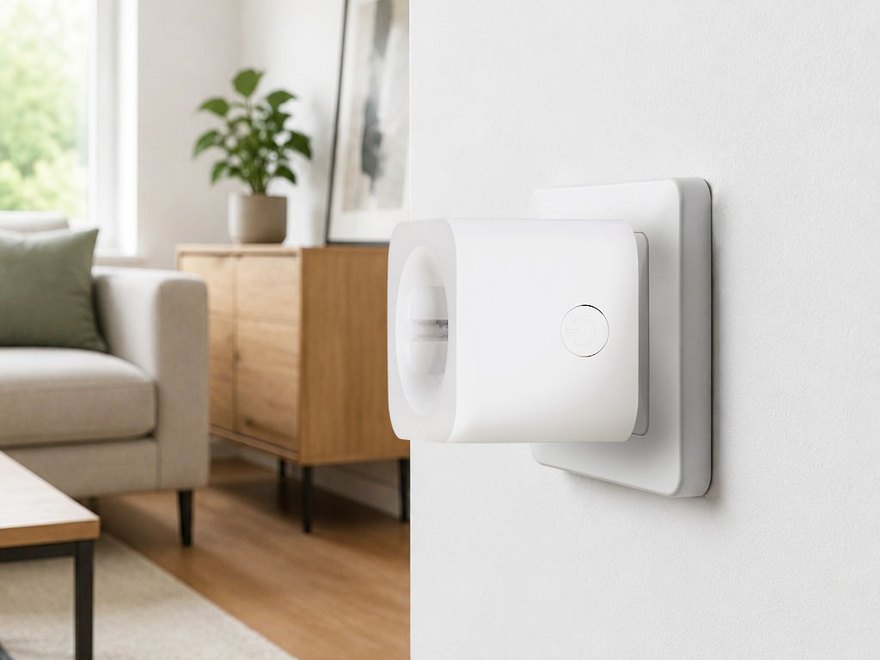
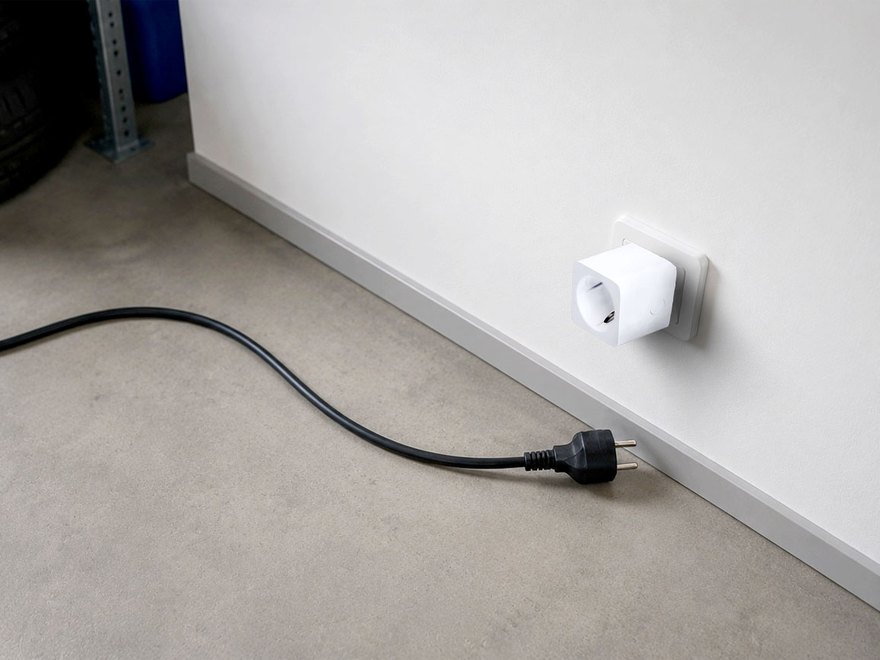
Socket is installed simply by plugging it into a standard wall outlet (type E/F, Schuko) or an extension cord – no further mounting or drilling is required. The device is intended exclusively for indoor use (IP20 protection rating).
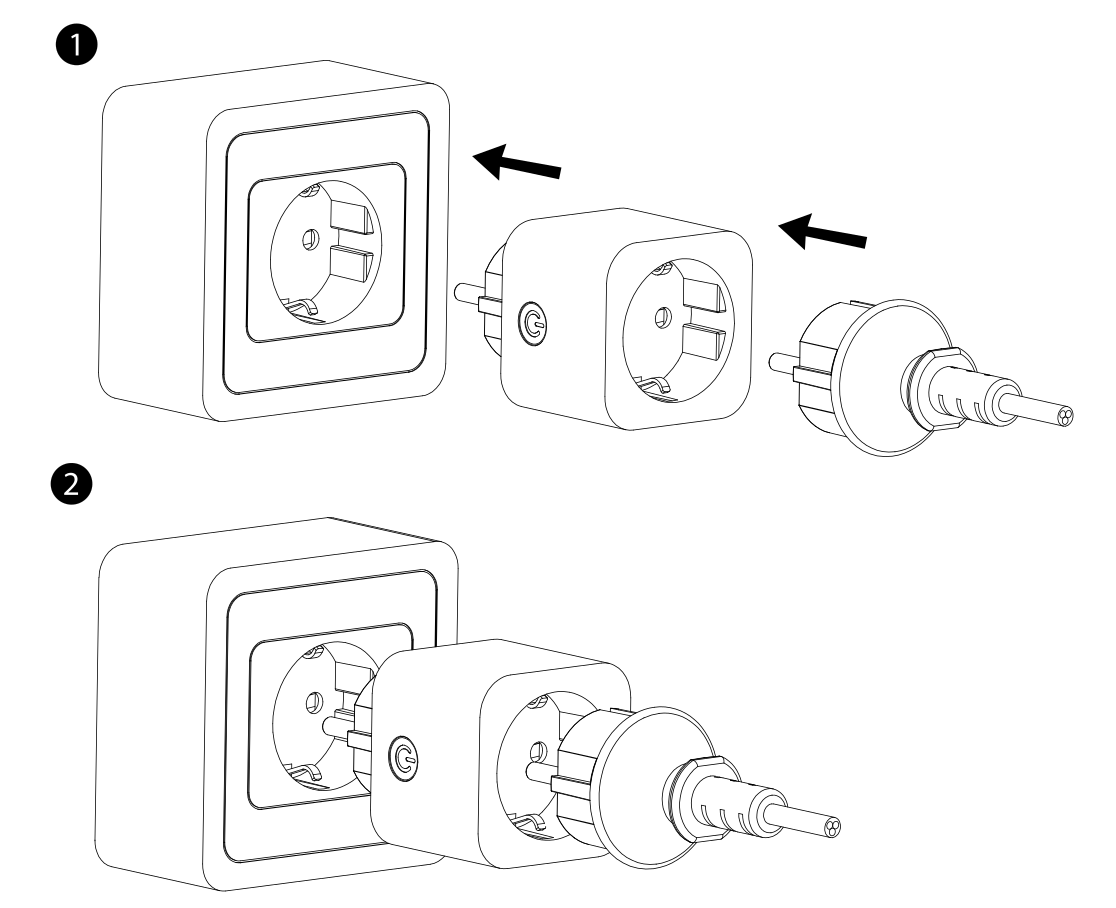
- Plug Socket directly into a wall outlet or an extension cord.
- Connect the electrical load (appliance) to the device's socket output.
- Check the signal strength at the installation site (Signal strength test) – the recommended minimum value is 2 bars. If the signal is weak, choose a different outlet closer to the hub, or use a signal repeater.
Functionality Test
After installation, verify the correct function of the plug:
- Signal strength test – run a test in the app and verify that the signal reaches at least 2 bars.
- Manual control – press the button on the plug and verify that the output switches (the LED lights up or turns off, and the connected appliance responds).
- Remote control – on the Control tab in the ProSAFE app, switch the plug's state and verify the response of the connected appliance.
- Consumption measurement – verify that the app displays the current values of input voltage, current, and power draw of the connected appliance.
Maintenance
- Always disconnect the plug from power before cleaning. Wipe the surface only with a dry, soft cloth; do not use liquid cleaning agents – risk of a short circuit caused by moisture.
- Do not cover the plug or the space around it, to prevent it from overheating.
- Regularly check that the plug fits firmly in the outlet and that it does not overheat or spark.
- Regularly check the signal strength and measured consumption values in the ProSAFE app.
- Do not disassemble the device. If the plug behaves unusually (heats up, emits an unusual sound or smell), immediately disconnect it from power and contact technical support.
Technical Specifications
| Electrical parameters | |
| Power supply | 100–240 V AC, 50/60 Hz |
| Output power | 100–240 V AC, max. 16 A |
| Own power consumption | 0,3 W |
| Output type | NO / NC (adjustable) |
| Output mode | Bistable / Pulse |
| Monitoring and protections | |
| Data monitoring | Temperature, input voltage, input current, power draw, electrical energy consumption |
| Current measurement accuracy | Range 0–16 A, accuracy class 1.0 or better |
| Voltage measurement accuracy | Range 0–250 V, accuracy class 1.0 or better |
| Temperature measurement accuracy | Range 0–55 °C, accuracy ±2% or ±2 °C |
| Protection with notification | Overload, overvoltage, and overheating |
| Wireless transmission – SAFE Keeper | |
| Carrier frequency | 868.0–868.6 MHz |
| Transmitter power (EIRP) | limit 25 mW |
| Communication distance | Up to 1,600 m in open space |
| Communication type | Two-way |
| Encryption | AES-128 |
| Frequency hopping | Yes (automatic) |
| Interface and functions | |
| Indication | 1× green LED |
| Control Devices | 1× button (performs multiple operations) |
| Relay output | 1× NO/NC (100–240 V AC, max. 16 A) |
| Remote update | Yes (Cloud) |
| Search | Signal strength detection |
| General | |
| Ingress protection rating | IP20 |
| Operating temperature | −10 °C to +55 °C (indoor environment) |
| Operating humidity | 10–90% RH, non-condensing |
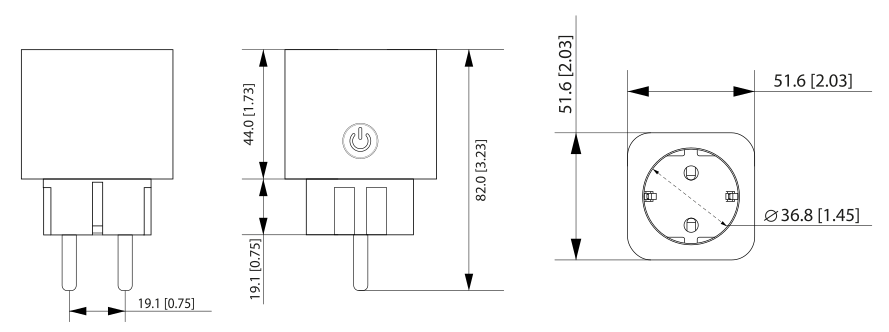
| Product dimensions | 52 × 52 × 82 mm |
| Weight (net) | 83 g |
| Housing material | PC, white |
| Installation | Socket adapter (wall outlet / extension cord) |
| Compatibility | Hub 2 Plus LTE (SAFE 38300) |
| Compliance | CE; Protection class I |
Package Contents
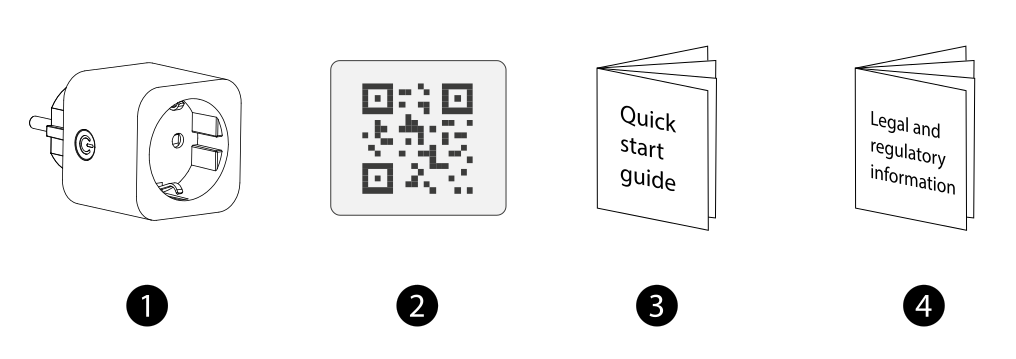
- Socket plug – 1 pcs
- QR code with serial number – 1 pcs
- Quick user guide – 1 pcs
- Legal and regulatory information – 1 pcs
Safety Notices
- Operate the device only within the rated input and output power range specified in the specification.
- Keep your hands dry when plugging in or unplugging the device to avoid electric shock.
- Prevent the device from falling or being splashed with liquid; do not place containers with liquid on or near the plug.
- Do not disassemble or modify the device, and do not forcibly plug in or unplug it – risk of damage or malfunction.
- Install the device only indoors, on a stable surface, away from moisture, dust, and soot.
- Make sure the mains supply voltage is within the permitted range and is stable.
- If the plug behaves unusually (overheats, emits a smell, makes an unusual sound), immediately disconnect it from power and contact technical support.
- Do not dispose of the product with regular household waste – hand it in for recycling through the electrical equipment take-back system.
Warranty
The SAFE Socket device is provided with a warranty of 36 months from the date of sale. The warranty does not cover defects caused by failure to follow the instructions in this manual or by incorrect connection of the electrical load.
If you experience any problems with the device, contact technical support first – most situations can be resolved remotely.
Gallery
Need Help?
SAFE HOME europe technical support:
Email: info@safe-home.eu · Phone: (+420) 581 222 262
Website: www.smart-safe.eu